
A Fire TV Stick can play IPTV through a compatible player and a playlist or login from an IPTV service. An IPTV player is an app that reads a playlist or service login and plays streams, but does not provide the streams itself.
In France, viewers need a player that works on their device and account details supplied by a service. The setup can fail when the app expects a different login format, even if the service account is active. This guide explains the parts to check before a viewer starts streaming.
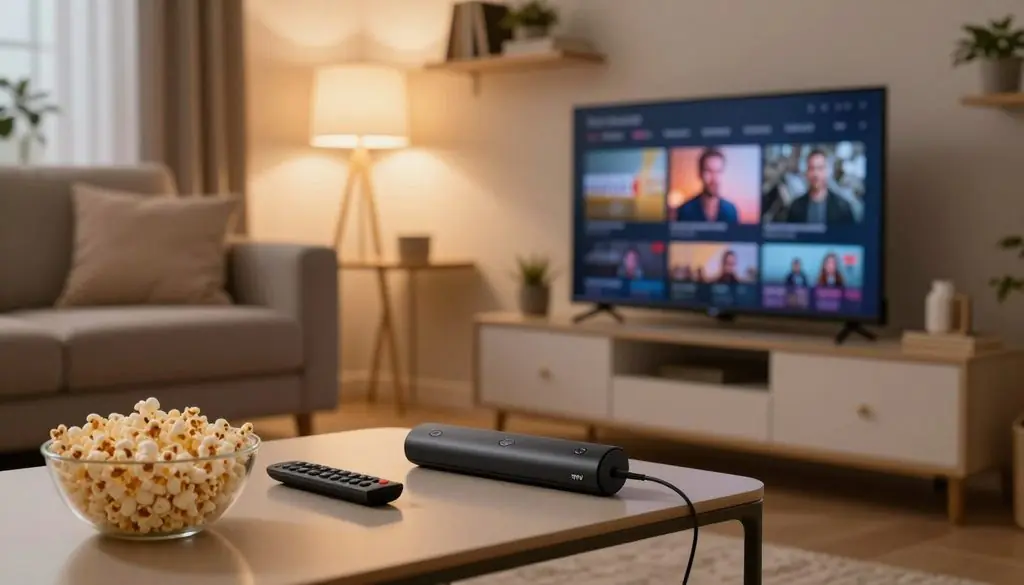
how to set up IPTV Firestick
The provider and playback app are separate products. A player may ask for an M3U URL or an Xtream Codes API login, depending on the service. A working setup depends on matching the player to the credentials the service provides.
Key Takeaways
- A Fire TV Stick plays streams through a compatible IPTV player.
- The IPTV service supplies the playlist or account credentials.
- Check the app listing before choosing a player.
- Use the login format the service gave the viewer.
- App activation and a service subscription are separate costs.
- Check content rights before paying for access.
Set Up a Fire TV Stick in France
Connect the Fire TV Stick to the television’s HDMI port, then follow the on-screen steps to join the home network and sign in. Start with the TV, not an IPTV app, so the device can reach its home screen first.
France supports compatible Fire TV devices. The Fire TV Stick HD supports Full HD streaming and Wi-Fi 6, but it is not a 4K model.
A weak or blocked Wi-Fi signal can interrupt playback, even when the app and account details are correct.
Connect the stick and prepare the TV
The Fire TV Stick HD plugs into an HDMI port and can draw power from the television through its included USB-C cable. The TV must be set to the HDMI input used by the stick. If the screen stays blank, check that input before changing other settings.
How do I set up my Firestick? Connect the stick, choose the language, join Wi-Fi, and sign in with an Amazon account. Follow the prompts on the screen; a remote control handles the setup.
- One open HDMI port on the television
- The included USB-C power cable
- A working Wi-Fi connection
- An Amazon account for sign-in
Check the account region and internet connection
Amazon account settings and the device’s country can affect which apps and features appear. A viewer in France should use account details that match the supported location and the device’s setup flow.
Once the home screen loads, test a video app or the network-status page. Wi-Fi can weaken behind a television, inside a cabinet, or far from the router. Check that the device is online before troubleshooting an IPTV app.
Choose an IPTV Player That Supports Your Setup
Start by checking the app listing on the Fire TV Stick, because availability can differ by model and country. The local listing shows whether a player can be installed on that device.
Choose by app availability and login format, not by a player ranking. Fire TV offers thousands of apps through the Amazon Appstore, though that does not mean every IPTV player appears there.
Check the Fire TV Appstore listing
Search the exact player name on the Fire TV Stick and inspect its listing. IPTV Smarters Pro is a player name to verify in the local Fire TV listing, not a guaranteed listing. The app page determines whether the device can install it.
An Android TV option in Google Play may suit an Android TV device, but Google Play does not install apps on a Fire TV Stick. The operating system and app store matter as much as the player’s features.
| Player or route | Where it is obtained | Fire TV Stick limitation |
| Amazon Appstore player | Fire TV Amazon Appstore | Must appear in the local listing |
| Smart IPTV external route | Smart IPTV website route | Not available in the Amazon Appstore |
| Android TV Google Play option | Google Play on Android TV | Not a Fire TV installation route |
Separate the player from the IPTV service
Smart IPTV does not provide channels or other media content. It supports M3U, M3U8 and XMLTV formats, and uses a device MAC address for playlist management.
Smart IPTV offers a 7-day trial followed by a one-time activation fee of 5.49 EUR. That fee pays for player activation, not an IPTV service subscription or channel access.
A player can display a service’s playlist only when the app supports the supplied format. Treat any player activation fee as separate from the IPTV service subscription. The app’s own listing determines whether the Fire TV Stick can install it.
How to Set Up IPTV Firestick With an App Store Player
On a Fire TV Stick HD, install IPTV players only from the Fire TV Amazon Appstore. The store route is the supported installation option for this model.
The Fire TV Stick HD does not allow apps from unknown sources. Only apps in the Fire TV Amazon Appstore are available to download on this device.
Find and install a compatible app
Can we install IPTV on Firestick? Yes, a viewer can install a compatible player offered in the Fire TV Appstore. An app that the model does not support cannot be added through the store.
- Open Find or Search from the Fire TV home screen.
- Enter the IPTV player name and review the results.
- Inspect the app listing and publisher before choosing it.
- Select Get or Download on a compatible listing.
- Launch the player after the download finishes.
Check the app’s page for its supported devices and features. A similar name does not prove that the listing is the same app. The right player must also accept the login format supplied by the IPTV service.
Know when Downloader and sideloading do not apply
Downloader is a file-download tool, not an IPTV service. It cannot make an unsupported app installable on the Fire TV Stick HD, and using it does not change the model’s installation rules.
How to unlock a Firestick is not a required step for Appstore installation. A viewer can install an available store app without opening developer options or changing device security settings.
Do not try to bypass the Fire TV Stick HD’s app-installation restriction. If the desired player is not offered for the device, choose an available compatible app rather than attempting to bypass its installation rules.
Add the IPTV Playlist or Account Details
The service’s credentials determine whether the player needs an M3U URL or separate server-login fields. Use the exact format the service supplied, because the wrong choice can leave the playlist empty.
An IPTV player does not supply channels. The viewer needs an IPTV service with valid access, and a service subscription may be required.
| Information received | Matching player option | What the entry does |
| M3U URL | M3U playlist | Loads a channel playlist |
| Server address, username, password | Xtream Codes API login | Connects with separate account fields |
| EPG or XMLTV URL | Programme guide or XMLTV | Loads programme schedule data |
Enter an M3U URL
Select the M3U option when the service provides a playlist web address. An M3U URL is a link the player uses to load the channel list. Some players also accept M3U8, a related playlist format.
- Open the player’s playlist or login page.
- Choose M3U or the matching playlist format.
- Paste the full M3U URL into the URL field.
- Add a playlist name if the app asks for one.
- Submit the details and wait for the playlist to load.
Copy the full address, including punctuation and any letters at the end. A missing character can stop the player from reaching the service. XMLTV is a programme-guide format, not a replacement for the channel playlist.
Use a server login and load the programme guide
An Xtream Codes API login uses a server address, username and password. Choose that login method, enter each supplied value in its matching field, then submit the form and wait for the channels to appear.
If the service gave an EPG or XMLTV URL, enter it in the player’s programme-guide field. EPG means electronic programme guide. The URL adds schedule information when the player supports that format.
How do I set up my IPTV? The viewer installs a player, adds the service’s playlist or login, and completes any separate app activation. Keep the original credentials private and ask the service to check them if the connection is refused.
Fix Common IPTV Problems on Fire TV Stick
A missing channel list is more often a format or credential mismatch than a reason to install another player. Check the cause before removing the app or changing the setup.
Separate app access, account details and network faults. Each points to a different next step, so testing them in order can save time.
Check app availability and playlist details
Why is my IPTV not working on Firestick? The cause is often an unavailable app, a rejected login, or an unstable network. Check the exact app listing first if the player is missing or closes as it opens.
| Symptom | First check | Next action |
| App missing or closing | Exact listing and device support | Check updates, then restart the device |
| Empty list or rejected login | M3U or server-login choice | Check copied characters and service access |
| Buffering or interrupted playback | Network status | Test the connection and restart the device |
For a rejected login, compare the player’s selected format with the service details. Check copied characters, including slashes, dots and capital letters. Confirm that the account still has active service access.
Test the network before changing players
Open Fire TV settings and use the network-status tool to test the connection. A connected device can still have a poor signal or lose speed during playback.
Check for an app update, then restart the Fire TV Stick if the player freezes. Clearing cache can remove temporary app files without the same effect as clearing data.
Fire TV’s Manage Installed Applications menu has app-level cache controls. Clearing app data can remove saved settings or playlists, so save the login details before clearing it.
Decide Whether a VPN Is Useful
A VPN is optional for IPTV setup, and it can add another factor to diagnose if streaming becomes slower. Use one for a clear reason, such as a privacy goal, rather than as a fix for every playback fault.
A VPN does not license content or correct invalid credentials. It routes internet traffic through a VPN provider and can change connection speed.
A VPN can encrypt the connection between the Fire TV Stick and the VPN service. That can support a privacy goal, but it does not make a viewer anonymous or guarantee that a service is lawful.
OpenVPN is a VPN protocol, not a VPN service or a Fire TV app by itself. To use OpenVPN on a Fire TV Stick, the viewer needs a compatible VPN app for that exact model.
VPN choices differ in their Fire TV support and in how they route traffic. Check the app listing and the VPN provider’s instructions for the device before setting it up.
A VPN can add latency, which may affect live streaming or cause buffering. A slower connection may also make a stream take longer to start. That makes a VPN a poor first step when the login itself has not been tested.
Separate privacy goals from connection troubleshooting. If playback changes after a VPN connection, test the same stream with the VPN off, then compare the result.
VPN use cannot promise to stop throttling, and a faster result in one test does not guarantee the same result later. Check the VPN app’s Fire TV compatibility and test playback with and without it.
France Availability and EU Travel Rules
A Fire TV Stick does not block IPTV as a category, but app availability and content access can differ by country. Country settings matter when an app or title does not appear.
EU travel access applies to eligible titles from the traveler’s country of residence. It does not make every app, feature or subscription available in every country.
Check country-specific app and content access
Fire TV content and features vary by country, and some services require a subscription. The country linked to the Amazon account can affect the app store page, while the service can set separate rules for its content.
A Fire TV Stick is not subject to a device-wide IPTV block simply because it is used in France. A missing app may reflect its local listing, while a missing title may reflect the service’s access terms.
Understand what changes during EU travel
EU residents traveling within the EU can access the same titles available when streaming from their country of residence. This rule concerns available titles during travel, not a promise that every app or feature works in each place.
Subscriptions may still be required, and a service may not offer the same features across countries. A VPN does not override content rights or change which titles a service is allowed to show.
When a title is absent, check whether the account region, app listing or service access explains the difference. Check the service’s current access terms for the country where the device is being used.
Keep the Fire TV Home Screen Manageable
Keep the home screen focused on the few apps used regularly rather than filling it with every available option. A short app row makes a player easier to find after the device starts.
More installations do not improve stream quality. A lean set of apps helps keep the Fire TV home screen clear and makes the viewer’s main choices easier to reach.
Pin the apps used most often
Open the installed apps area from the Fire TV home screen. Select an app and use the available home-screen arrangement options to move or pin it, if the device offers that choice.
After the Fire TV interface update in 2026, users can pin up to three times more apps on the home screen. This gives viewers more room for apps they actually use, without requiring a full collection.
Place the IPTV player where it can be reached quickly, then keep daily-use apps close by. The screen is easier to scan when seldom-used tools do not crowd the first row.
Avoid filling the device with unnecessary apps
How to fully load a Fire Stick is not a goal that improves performance or picture quality. A useful setup needs a player, the apps the household uses, and any tools needed for ordinary device use.
Each extra installation adds another icon to sort through. It can also take time to manage updates and permissions, even when an app is rarely opened.
Use the app library to find installed tools and remove ones that are no longer useful. Remove apps that are no longer used and keep the IPTV player easy to locate.
Assess the ProtoIPTV Trial and 4K Subscription Options
A free IPTV trial is useful only if its access, cancellation and content terms are clear before activation. Read the offer details before entering payment information or starting a trial.
A trial label alone does not show the full cost or service terms. ProtoIPTV is the service named for the free IPTV trial discussed here, but an offer’s details can change.
Check the ProtoIPTV free trial terms
“IPTV Providers With Free Trials: ProtoIPTV Review” is an evaluation topic, not a verified ranking. A viewer can judge the offer by reading its terms and testing only the features that matter to the household.
Before activating ProtoIPTV, check each point in the offer:
- Trial duration and the date access ends
- Renewal price after the trial
- Cancellation method and timing
- Device support and stream formats
- Content rights and support channels
The service page should explain how a viewer can stop a renewal and contact support. If the terms do not clearly state when billing begins, the viewer should not treat the trial as cost-free.
A free trial can help test playback on the actual Fire TV Stick, but it cannot confirm that every future stream will work the same way. The viewer should also check whether the service’s content rights fit the intended use.
Judge 4K value by the viewing setup
“IPTV Subscription 2026: Best Affordable 4K Streaming Service” is a set of buying criteria, not proof that any named service is best or affordable. A 4K label describes resolution, not the quality or rights of every programme.
4K value depends on the display, internet connection, player and specific stream. The viewer needs a 4K display and a stream actually offered in that resolution to see 4K video.
A Fire TV Stick HD supports Full HD, not 4K. A 4K subscription would not change that device’s resolution limit, and the service may offer some content below 4K.
Compare the price with the content the household watches and the device it already owns. Confirm the current trial and renewal terms directly before submitting payment details.
Check Content Rights Before You Subscribe
Owning a Fire TV Stick or using a playback app does not by itself establish whether the streams are licensed. The service’s rights, not the device model, determine whether it may distribute that content.
French audiovisual distribution rights concern the content and service, not merely the playback device. A player can load a playlist without confirming the service’s broadcast rights.
A device type alone cannot show whether a viewer accessed licensed content.
ARCOM is France’s audiovisual and digital communications regulator. It provides public guidance on audiovisual rules and can help readers understand the role of content rights.
Can illegal firesticks be detected? Device type alone does not establish unlawful use, and investigations depend on the facts of a case. How do police track dodgy firesticks? Investigations may rely on lawful evidence relevant to the service and conduct involved.
What is the punishment for an illegal firestick? Legal consequences depend on the conduct and applicable French law. Can you go to jail for a jailbroken Firestick? Modifying a device is different from accessing or distributing unlicensed content, and an individual outcome depends on the facts.
Readers should not treat a modified device as proof of a crime or as proof that a service is lawful. The player itself does not grant rights to show a channel, film or event.
Choose services that can explain their content rights and consult an appropriate French authority or legal professional about a specific case.
Conclusion
A straightforward IPTV setup uses a Fire TV Stick, a compatible app-store player and valid service credentials. The player handles playback; it does not supply channels or prove that a service has rights to show them.
The service’s login format must match the app’s fields. An M3U URL and an Xtream Codes API login are different ways to connect, so using the wrong option can prevent a playlist from loading.
Before activation, check the player’s Fire TV listing and the service’s current access terms. That small check can prevent an unsupported app or unclear subscription from becoming part of the setup.
FAQ
Can illegal firesticks be detected?
A device model alone does not establish illegal use. The legality depends on the service and content accessed, not simply on whether the viewer owns a Fire TV Stick. Investigations may consider evidence tied to a particular service or action. A device can also have ordinary, lawful uses, so its model cannot answer what content someone watched.
How do police track dodgy firesticks?
Investigations may use lawful evidence relevant to a case. A Fire TV Stick does not reveal by itself whether someone used a licensed service or accessed unlicensed streams. The facts can include the service involved and the person’s conduct. No device offers a basis for assuming anonymity, and readers should not rely on claims that a tool hides unlawful activity.
What is the punishment for an illegal firestick?
Consequences depend on the conduct and the French law that applies. Owning a Fire TV Stick is not the same as distributing unlicensed content, and each case turns on its facts. A general claim about one punishment cannot predict an individual result. Readers with a specific concern can seek guidance from a qualified French legal professional.
Can you go to jail for a jailbroken Firestick?
Modifying a device is different from accessing or distributing unlicensed content. Whether conduct breaks French law depends on what happened, the rights involved and the facts of the case. A modified device alone does not establish a person’s actions or predict a court outcome. A legal professional can assess a specific situation more reliably than a broad online claim.
Does an IPTV player include channels?
No, an IPTV player does not include channels. The app reads a playlist or service login and plays the streams that account can access. The viewer needs a separate IPTV service with appropriate rights and valid access. A player’s activation fee, if any, is also separate from the service subscription, so both terms should be understood before payment.
Leave a Reply